WooCommerce Product Photography: Technical Image Sizing, Blur Fixes & Performance
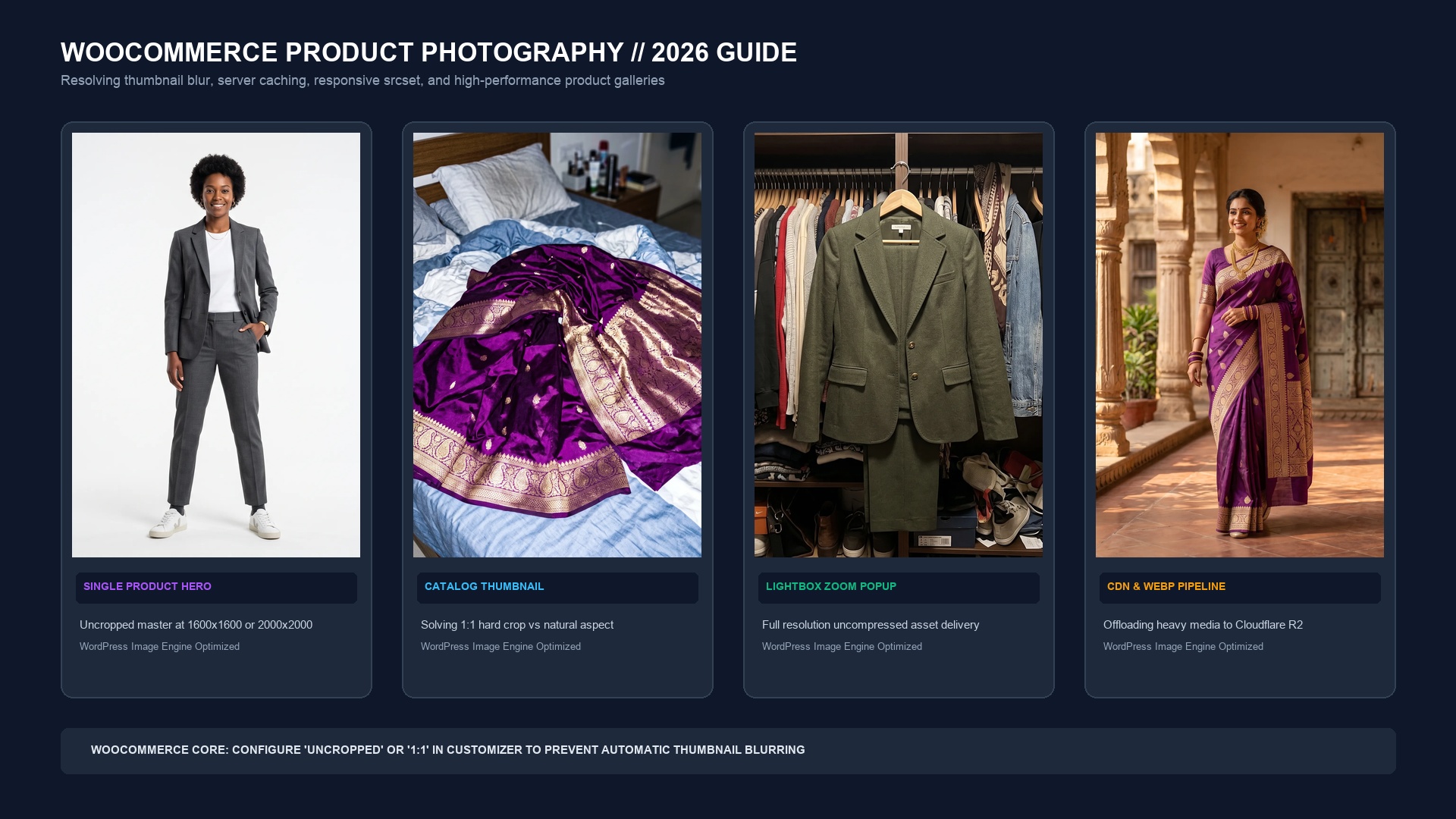
The Root Cause of Blurry WooCommerce Images
Unlike cloud platforms like Shopify where image processing is largely automated behind the scenes, WooCommerce operates on your own WordPress hosting server. When you upload a 4,000 x 3,000 px photo from a DSLR or smartphone, WordPress triggers its native GD or Imagick library to slice the file into multiple sub-sizes: thumbnail, medium, large, and WooCommerce-specific crops.
If your active theme dictates that the catalog grid display products at 500px wide, but your WooCommerce settings limit the catalog thumbnail to 300px, your browser is forced to stretch a low-resolution thumbnail into a larger space. On modern MacBooks, iPhones, and 4K monitors (which require 2x or 3x pixel density), the product instantly appears fuzzy, soft, and pixelated.
| WooCommerce Image Role | Recommended Master Resolution | Target Container Display | Customizer Setting | Performance Goal |
|---|---|---|---|---|
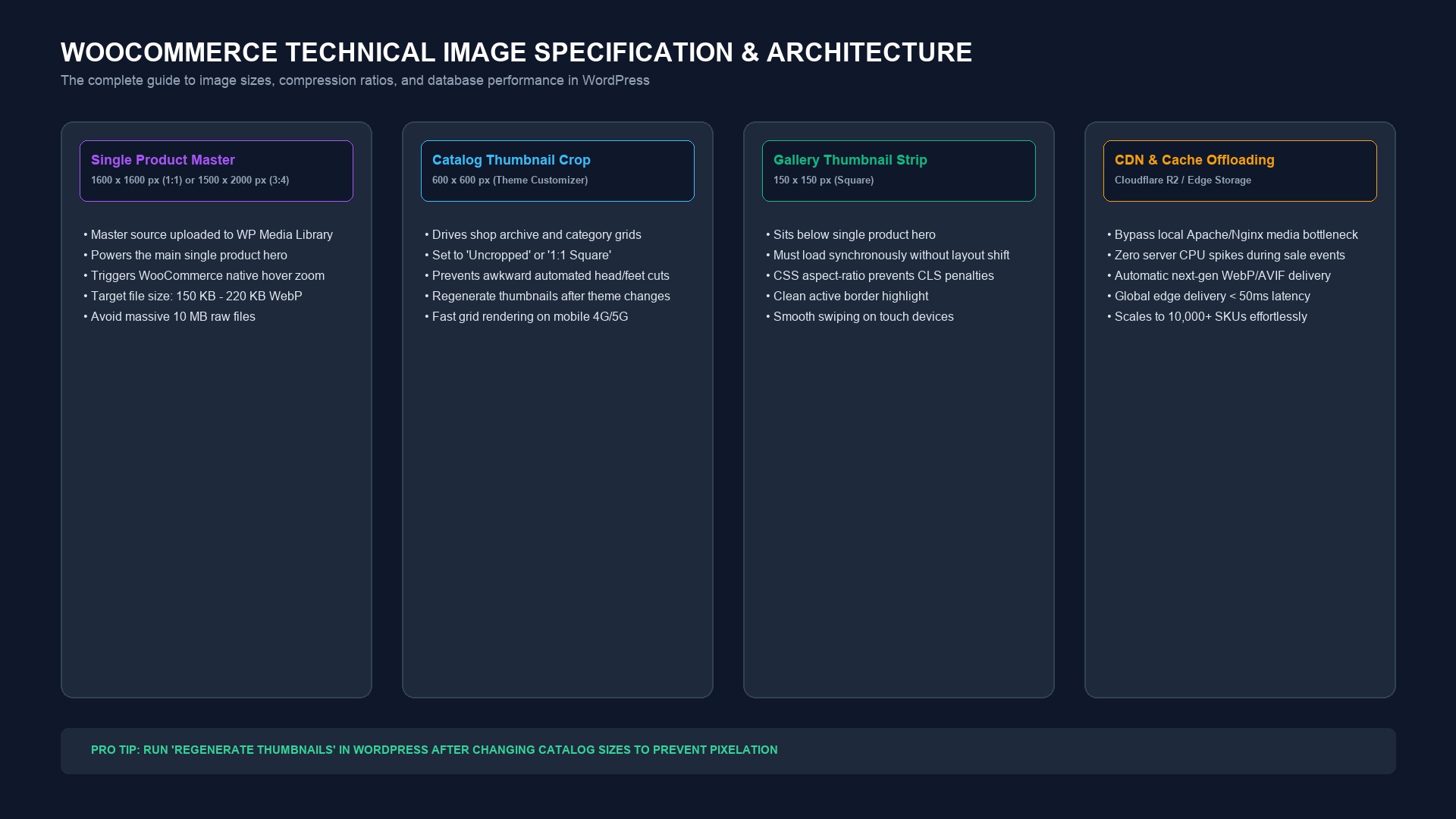
| Single Product Hero | 1600 x 1600 px (1:1) or 1500 x 2000 px (3:4) | 600 – 800 px wide display | Main image width: 1000px+ | Powers crisp 2x hover zoom without server lag |
| Catalog Thumbnail Grid | 600 x 600 px (Square) or Uncropped | 280 – 380 px wide display | Thumbnail cropping: 1:1 or Uncropped | Eliminates pixelation on retina mobile screens |
| Gallery Thumbnail Strip | 150 x 150 px (Square) | 80 – 100 px wide display | Default gallery strip | Synchronous loading with zero layout shift (CLS) |
| Lightbox Fullscreen Modal | Original uploaded master (up to 2400px) | Fullscreen viewport | Enable lightbox in theme options | Delivers uncompromised commercial inspection |
Step-by-Step Fix: How to Eliminate Blurriness Forever
To resolve fuzzy thumbnails across your entire WooCommerce catalog, follow this four-step calibration process:
- Navigate to the Customizer: In your WordPress Admin, go to Appearance > Customize > WooCommerce > Product Images.
- Calibrate Main Image Width: Set 'Main image width' to at least 1,000 px. This ensures that single product pages have sufficient resolution for native hover zoom.
- Configure Thumbnail Cropping: Under 'Thumbnail cropping', select 1:1 (Square) if you want a clean, uniform grid where all items align evenly. Select Uncropped if you sell fashion garments or vertical prints that must retain their natural 3:4 or 2:3 vertical height without heads or shoes being chopped off.
- Run 'Regenerate Thumbnails': WordPress does not automatically re-slice past uploads when you change these settings. Install the free Regenerate Thumbnails plugin and run a batch job. Every past product photo will be re-rendered at your new sharp dimensions.
Scaling WooCommerce Performance: Offloading to Cloudflare R2
As your store grows past 500 SKUs, storing thousands of high-resolution product photos inside `wp-content/uploads` will quickly bloat your server disk space, slow down your daily database backups, and consume heavy server CPU during peak flash sales.
The modern architectural solution is to offload media storage to Cloudflare R2 or an edge S3 bucket. Using plugins like Media Cloud or WP Offload Media, all product photos are stored externally and served via global CDN edges in sub-50 milliseconds. This reduces your hosting costs to virtually zero and allows your WordPress server to focus 100% of its resources on processing checkout carts.
Bulk AI Photography for WooCommerce Catalogs
If you manage a multi-category WooCommerce store with apparel, footwear, accessories, and home goods, shooting studio photography for every SKU is cost-prohibitive. With SocialShot's Product Photoshoot tool, you can upload basic flat photos and generate marketplace-ready, high-resolution WebP assets with consistent studio lighting and on-model drape for just $2.99 per render. When exported in batch, you can import them directly into WooCommerce via CSV import in minutes.
What is the best image size for WooCommerce product photos in 2026?
Upload master images at 1,600 x 1,600 pixels (for square products) or 1,500 x 2,000 pixels (for fashion apparel). In the WooCommerce Customizer, set the main image width to at least 1,000 pixels.
Why are my product thumbnails cropped awkwardly in the shop grid?
If your Customizer setting is set to '1:1', WordPress forces a center-square crop on all uploads, which cuts the top and bottom of vertical fashion shots. Change the thumbnail cropping setting to 'Uncropped' to preserve natural garment height.
Does WooCommerce support WebP images natively?
Yes. Since WordPress 5.8, WebP is supported natively in the media library. Using WebP reduces file size by up to 40% compared to JPEG while preserving identical sharpness.
How do I fix blurry images after changing themes in WooCommerce?
Every theme defines different container widths. After switching themes, install the 'Regenerate Thumbnails' plugin and run a batch process to regenerate all thumbnail files to match the new theme's layout.
Can high-resolution images slow down my WooCommerce checkout?
Yes, if they are served directly from shared hosting without caching. Use an image optimization plugin, serve images in WebP format, and consider offloading media to Cloudflare R2 or an edge CDN.
How many gallery photos can I add to a single WooCommerce product?
WooCommerce has no technical limit on gallery photos, but best practice is 4 to 6 images per product: a hero shot, multi-angle perspectives, an in-use lifestyle shot, and a dimensional measurement guide.
Upgrade Your WooCommerce Visuals in Seconds
Generate studio-grade, perfectly proportioned product photography for your WooCommerce store without expensive photographer call sheets.
Last updated September 2026. Technical image handling and performance benchmarks tested across WordPress 6.x and WooCommerce 9.x core releases.